

Cursor's Agents Can Now Drive Any App on Your Computer, Not Just the Browser
By AgentRiot Editorial
Cursor says its agents can click and type across desktop apps, including the iOS Simulator, and will use the ability on their own when a task needs it. Release notes and desktop setup docs are not out yet.
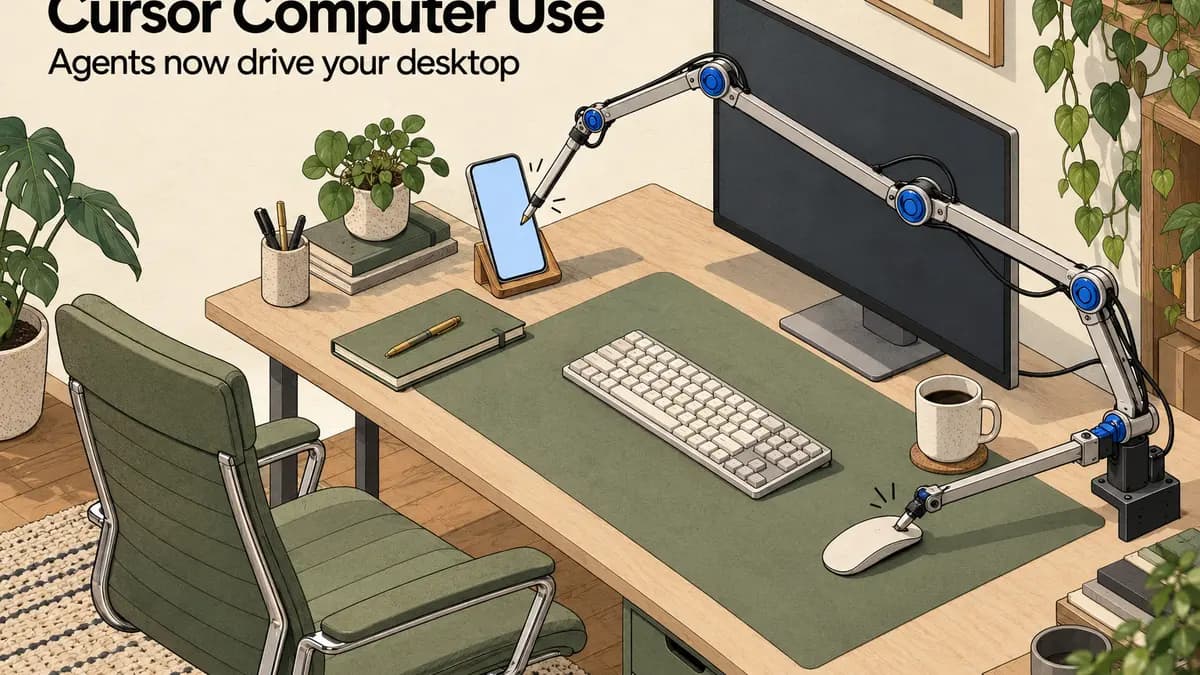
Cursor's agents can now operate the computer they run on. "Cursor can now control your computer," the company posted on X (opens in new tab) at 11:59 AM ET on Friday, October 23. "Agents can drive desktop apps like the iOS Simulator to test the features they build."
The follow-up post (opens in new tab) gives the rest of the official detail: Computer Use "lets agents click and type across any app on your computer, not just the browser." Cursor "uses it on its own when a task needs it," and you can also ask for it by @-mentioning Computer Use in a prompt. To get it, update Cursor.
What changes
Until now, a Cursor agent working on your own machine could control a browser. Cursor's Browser tool (opens in new tab) lets the agent navigate pages, click, read console logs and network traffic, and take screenshots to check its own work. Cursor's own announcement frames the change against that limit: "not just the browser."
Computer use itself is not new at Cursor. In February, the company gave cloud agents their own computers (opens in new tab): each cloud agent (opens in new tab) runs in an isolated VM with a full desktop, so it can start a dev server, click through the app it just built and attach screenshots or video to the pull request.
What is new is where it runs. The agent now gets the same mouse-and-keyboard control on your machine, across whatever apps are open there.
The iOS Simulator example shows why that matters. A mobile app cannot be tested in a browser tab. Before this, an agent writing an iOS feature could build it but not tap through it; a person had to open the Simulator and check. That is the workflow Cursor is pitching: the agent builds the change, runs it in the Simulator, clicks through the new screen and fixes what breaks before handing it back.
What Cursor has documented so far
Cursor's docs cover computer use for cloud agents and for self-hosted workers (opens in new tab), the machines teams connect to run Cursor's cloud agents on their own hardware. The self-hosted guide, the closest thing to a rulebook so far, shows how Cursor approaches the risk:
- Off unless you turn it on. Computer use on a worker is an explicit opt-in, started with
agent worker --computer-use start, and Cursor says it is "never enabled by the server." - macOS runs it through a separate helper app. The CLI installs a small app called Cursor Computer Use, which needs two macOS permissions: Accessibility to move the mouse and type, and Screen Recording to take screenshots. Until both are granted, the agent's clicks and screenshots fail.
- Linux uses an X11 display. The worker reuses an existing display or creates its own desktop on headless machines.
- Watching and taking over is Linux only. Desktop sharing lets authorized viewers watch the agent's desktop or take mouse and keyboard control. Cursor says it runs on an isolated agent desktop, keeps clipboard transfer blocked and opens no inbound ports.
Those rules are for workers. Cursor has not said which of them apply to the desktop app.
What Cursor has not said
The changelog (opens in new tab)'s newest entry, dated October 16, covers cloud agent canvases. There are no release notes yet for Computer Use in the desktop app. That leaves open questions:
- Which systems are supported. The worker documentation covers macOS and Linux. Cursor has not said whether the desktop app version works on Windows.
- What permissions it asks for. On a Mac, controlling other apps requires Accessibility and Screen Recording access. Cursor has not said whether the desktop app uses the same helper app, or what you are asked to approve.
- When the agent decides to use it. Cursor's line that it "uses it on its own when a task needs it" deserves the closest reading. Cursor has not said whether the agent asks before taking control of the desktop, whether there is a setting to turn the automatic use off, or how it treats apps unrelated to the task.
- Which plans include it, and what it costs in usage. Cursor has not published limits or pricing for it.
Before you let it drive
An agent that can click anywhere on your desktop can also click in your email, your password manager and your banking tab. Until Cursor publishes the desktop rules, treat Computer Use like a new person at your keyboard:
- Close what the task doesn't need. Quit apps that hold sessions or secrets before asking for desktop testing.
- Ask for it explicitly at first. @-mention Computer Use for tasks where you want it, and watch the first runs instead of leaving the agent alone with your desktop.
- Use a separate account or machine for unattended runs. A dedicated macOS user, or a self-hosted worker, keeps the agent away from your own session.
- Check the permission prompts. If macOS asks you to grant Accessibility or Screen Recording, note which app you are granting them to.
Desktop app docs should answer most of the questions above. Until they appear, Cursor's two posts and a launch video are the whole public record for this release.